
Usage
Recording
Section titled “Recording”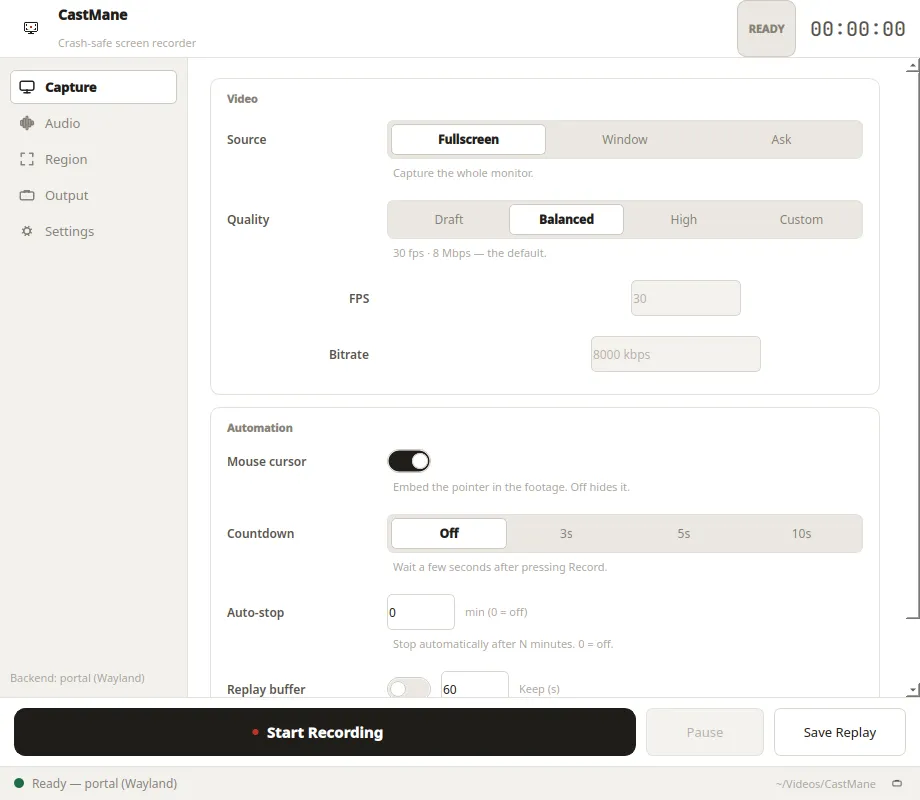
- Start the app. The status line shows the active backend, e.g.
Ready [portal (Wayland)]. - Pick a source: Full-screen, Window, or Ask / Select region. On Wayland the system dialog lists monitors or windows; on X11, Ask opens a drag-to-select frame.
- Press Record. On Wayland the system screen-share dialog appears — pick the monitor or window and confirm (you have 180 seconds).
While recording the timer turns red and the button becomes Stop:
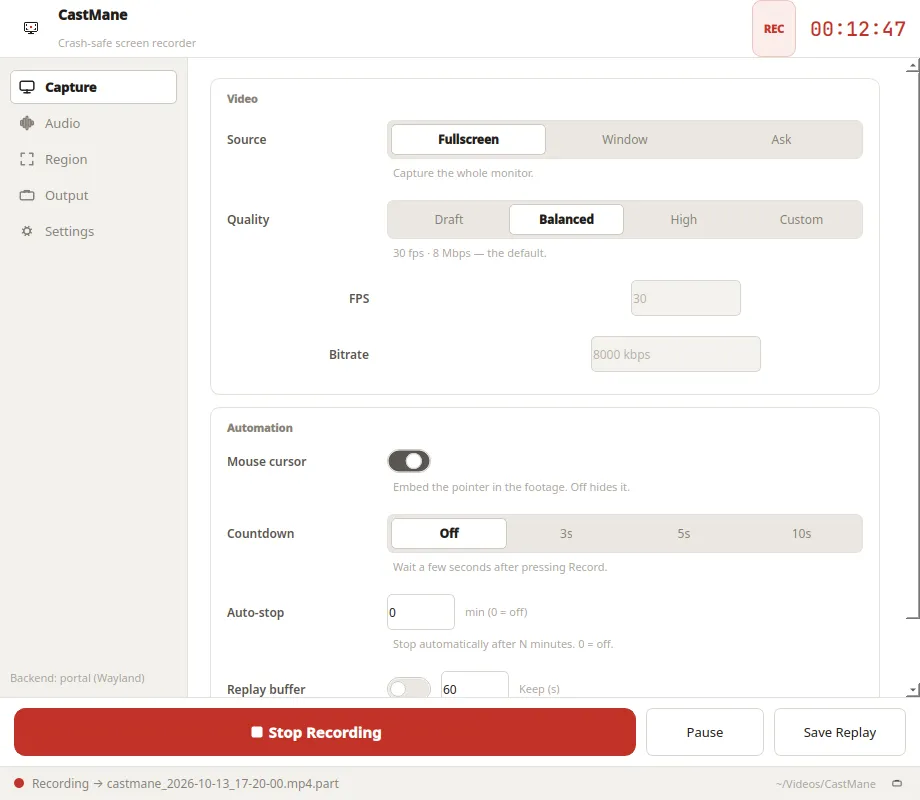
- Press Stop. The finished file lands in
~/Videos/CastManeascastmane_YYYY-MM-DD_HH-MM-SS.mp4.
Language
Section titled “Language”The interface is English by default. To switch to Turkish, pick
Türkçe from the Language dropdown in Recording Settings.
In code: AppConfig(language="tr").
Pause and resume
Section titled “Pause and resume”Press Pause mid-recording to freeze the encoder (SIGSTOP); the timer
stops and the paused stretch is left out of the footage. Resume continues
into the same file. Stopping while paused resumes first, so the trailer is
always written cleanly.
Recovering an interrupted recording
Section titled “Recovering an interrupted recording”Look for the *.mkv.part (Wayland) or *.mp4.part (X11) file in the same
folder — it plays as-is. Just rename it (on Wayland, optionally remux to MP4
yourself):
ffmpeg -i file.mkv.part -c copy file.mp4See Crash-safety for why this works.